TABZOOKA
Games to play at school on a Chromebook
The best games to play at school are the ones your Chromebook already allows: Google’s own toys like the Snake game in Search and Quick, Draw!, word puzzles like Wordle, chess on Lichess, and Chrome extensions your school lets you add. On most school Chromebooks the offline dino game is switched off unless the school turns it back on.
First, why some games just don’t work at school
A school Chromebook is managed. Your school’s IT team sets its rules from a Google Admin console, and those rules decide which sites open and which extensions you can add. Google gives admins three ways to handle the Chrome Web Store: allow everything except a block list, block everything except an approved list, or turn the store off and push extensions to every laptop themselves (Google explains the options on its admin help page). Plenty of districts pick the approved-list option for students, so “Add to Chrome” may be greyed out for you.
The missing dinosaur is the one that confuses people most. Chrome has a setting called AllowDinosaurEasterEgg, and when a school leaves it unset, the dino game is off on any Chromebook enrolled in the school’s domain. Your laptop isn’t broken. The same game works at home on a personal computer.
So start with what your school already allows. That’s usually more than you’d think. Skip proxy sites and VPN tricks. They break most schools’ acceptable use policies, they’re a common way to get your Chromebook taken away, and many of them are full of ads you didn’t ask for.
Games that usually work on a school Chromebook
Google’s own games tend to get through because schools rarely block google.com. Learning sites do well for the same reason.
| Game | How to open it | One round takes |
|---|---|---|
| Snake | Search “play snake” on Google | 1–3 minutes |
| Quick, Draw! | quickdraw.withgoogle.com | About 2 minutes |
| Wordle | New York Times Games | 3–5 minutes, once a day |
| Chess | lichess.org, free with no ads | 3 minutes (blitz) to a full period |
| Little Alchemy 2 | littlealchemy2.com | As long as you like; it saves |
| Interland | Google’s Be Internet Awesome site | 5–10 minutes a world |
| Tabzooka | Chrome extension, if your school allows it | About a minute a level |
Snake and Quick, Draw!
Search “play snake” and Google shows a playable Snake right in the results, with different maps and fruit counts to pick from. Quick, Draw! gives you six things to draw, 20 seconds each, while a neural network tries to guess what you’re sketching. It’s funny when it guesses “hospital” for your cat, and it’s over in two minutes.
Wordle and chess
Wordle is one puzzle a day, which makes it the easiest game here to stop. Lichess is a free, open source chess site with no ads, and you can play a bot or send a friend a game link. Chess clubs at school often use it already.
Little Alchemy 2 and Interland
Little Alchemy 2 starts you with air, earth, fire and water and has you combine them into hundreds of things. It remembers your progress, so you can pick it up again tomorrow. Interland is Google’s online safety game, built for classrooms, so it’s the one a teacher is least likely to mind.
Tabzooka: turn the page you’re on into the level
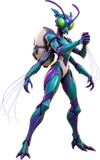
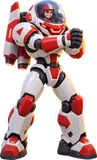
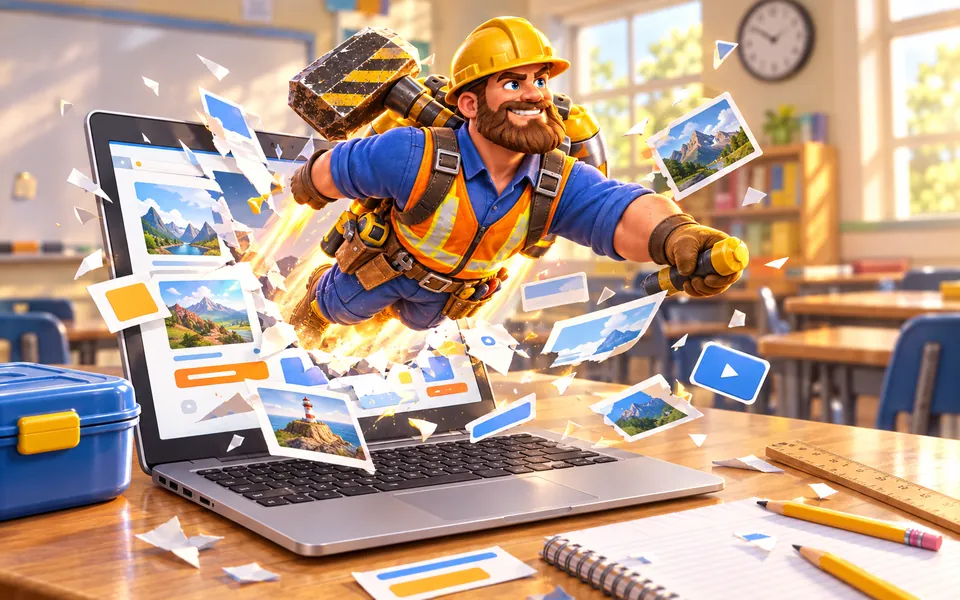
Tabzooka is our game, so take this section with that in mind. It’s a Chrome extension that turns whatever website you have open into a platformer: you pick a hero, fly around on a jetpack and blow the page apart. Nothing real gets damaged. It only changes what your own tab shows, and the X on any menu puts the page back.
A few things make it fit a school day:
- A level of Target Rush, the mode in the free version, is short. On level 1 you get 8 marked targets and 64 seconds, so you can play one between classes.
- It has five built-in arenas (a news site, a sky tower, a server farm, a glass museum and PapaMarks), so you can play even if the site you wanted is blocked.
- Esc opens the menu, which has a mute button, and Tabzooka remembers that choice next time.
- It asks for very little. Tabzooka only runs on a tab when you click its icon or press Alt+Shift+Z, and it needs no account. Your records stay on your laptop.
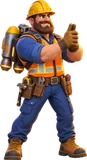
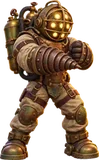
The free version gives you two heroes, Fathom and Brick, plus every mode except Web Invasion. If your Chromebook lets you install extensions, add Tabzooka to Chrome. If it doesn’t, ask whether it can be added to your school’s approved list, or play it at home.
When it’s OK to play
Every school has its own rules, and most of them come down to timing. Lunch, study hall, indoor recess, and the ten minutes after you finish a test are usually fine. The middle of a lesson isn’t. If you’re not sure, ask. Teachers say yes more often than you’d expect, especially to puzzle games and chess.
Questions people ask
Why can’t I play the dino game on my school Chromebook?
Chrome has an admin setting called AllowDinosaurEasterEgg. When a school leaves it unset, the offline dino game is turned off on Chromebooks enrolled in the school’s domain. Only your school’s IT team can turn it back on.
Why can’t I add Chrome extensions on my school Chromebook?
Your school controls which extensions students can install. Many schools block everything except an approved list, so the Add to Chrome button is greyed out. You can ask your teacher or IT team to approve an extension.
What games can I play at school without downloading anything?
Google’s Snake game (search “play snake”), Quick, Draw!, Wordle, chess on Lichess and Little Alchemy 2 all run in a browser tab with nothing to install, and schools rarely block them.
Is it safe to use unblocked game sites at school?
Many are copies of other people’s games covered in ads, and using proxies or VPNs to get around filters breaks most schools’ rules. Stick to games your school already allows.
Does Tabzooka work on a Chromebook?
Yes. It’s a Chrome extension, so it runs in Chrome on ChromeOS, Windows, Mac and Linux. On a school Chromebook you can only install it if your school allows extensions from the Chrome Web Store.